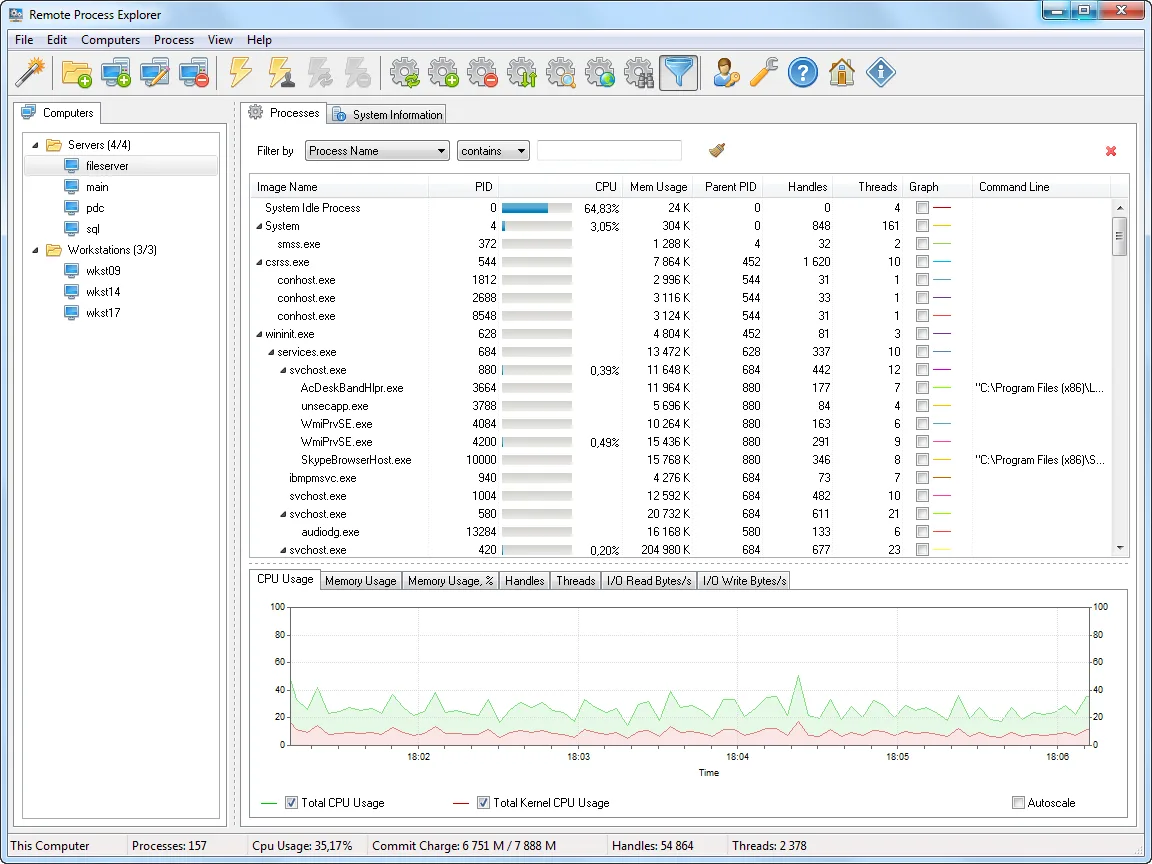
A user on the third floor calls: Outlook is frozen, the machine is crawling, and they are mid-way through a document they don’t want to lose. You could start a remote session and take over their screen, but that interrupts them and means waiting for a slow desktop to respond. What you actually want is Task Manager for their PC, running on yours: sort by CPU, spot the runaway OUTLOOK.EXE or the stuck msiexec, end it, and hang up. LizardSystems Remote Process Explorer is that remote Task Manager, with 34 releases in its history.
What it does
You keep a list of computers — typed in, grouped, or imported from a text file with one name or IP per line — and each entry shows whether it is reachable. Selecting a machine opens a live process list with PID, CPU, memory, priority, handle and thread counts, plus a tree view that shows parent/child relationships (useful when a script host has spawned a chain of processes). From there you can:
- end a process or a whole tree;
- change priority, for example dropping a runaway indexer to Below Normal;
- start a new process on the remote machine;
- restart or shut down the computer;
- export the process list to a file;
- look a process name up on the web when you don’t recognise it.
A per-computer “Connect as” setting stores alternate credentials, so one console can hold machines in different trust zones. Current version at the time of writing is 25.05 (May 2025), which added silent-uninstall support; before that the last release was 22.10 in October 2022.
How it connects, and what it needs
The vendor’s FAQ is explicit that it uses WMI through DCOM/RPC — the same plumbing as Computer Management or Get-CimInstance -ComputerName pc042 -ClassName Win32_Process -Protocol Dcom. That determines everything about rights and firewall rules:
- Rights: local administrator on the target. A domain account in the workstation’s local Administrators group (typically via a “Workstation Admins” group pushed by GPO) is the normal pattern.
- Ports: TCP 135 for the RPC endpoint mapper, then a dynamic high port for the DCOM session. The FAQ also lists NetBIOS ports 137–139; on a modern domain these matter less than 135 plus the dynamic range. The predefined “Windows Management Instrumentation (WMI)” firewall rule group is the clean way to open them on workstations.
- Targets: Windows Home editions don’t allow remote administration, so they won’t work.
One caution. The vendor’s troubleshooting page suggests setting LocalAccountTokenFilterPolicy to 1 or disabling the firewall when access is denied. Don’t do either on a domain: use a domain account that is a local admin, and open only the WMI rule group. Setting that registry value weakens UAC remote restrictions for local accounts and makes pass-the-hash style lateral movement easier.
As for the audit trail, every action is an ordinary WMI call made under your account. The target records your network logon (4624, logon type 3) in its Security log, and if you enable process-creation auditing (4688) and process-termination auditing (4689) you’ll have a record of what was started or ended. The tool keeps no separate log of its own actions.
Use only on systems you administer and with your organisation’s authorization. Viewing someone’s process list is a support action; it is not a way to review what people work on.
Where it’s strong
- Zero footprint on the target — nothing to deploy, nothing left running.
- Quick triage across many machines from one list, with status at a glance.
- Priority changes and remote process start, which PowerShell makes clumsy over DCOM.
- A free personal licence and a modest business price.
Where it falls short and who should skip it
DCOM is the weak point. It does not cross NAT well — the FAQ’s fix is a hosts-file entry — and it is fussier through firewalls than WinRM. Microsoft’s DCOM hardening changes have also made older tools occasionally unhappy, so test against your baseline. It’s a 32-bit Windows desktop app. It doesn’t show services, DLLs, open handles or network connections per process the way Process Explorer does, and it has no command line for scripting beyond licence registration. Shops that standardise on PowerShell remoting will get more from Invoke-Command { Get-Process | Sort CPU -desc | Select -First 10 } and Stop-Process. And if you need deep forensics on one box, the Sysinternals tools go further.
Who it suits
Helpdesk and desktop-support admins in a domain of a few dozen to a few hundred workstations, who get “my PC is frozen” calls weekly and want to fix them without taking over the user’s screen. It is also a tidy tool for a sysadmin who wants a GUI view of processes on several app servers at once.
Licensing and cost
At the time of writing there is a free Personal licence for non-commercial use, a Business licence at US$149.95 per machine where it is installed, and a Corporate licence at US$2,999.95 for unlimited installations. Paid licences are perpetual with a year of updates. The unregistered copy evaluates without functional limits on one computer, with nag screens. Check the vendor’s pricing page for current figures.
How it compares
The obvious rival is Microsoft’s free toolkit — PsList, PsKill and Process Explorer in the Sysinternals Suite. The trade-offs are laid out in Remote Process Explorer vs Sysinternals. Windows Admin Center also has a Processes tool for servers, over WinRM rather than DCOM. For a step-by-step approach using both GUI and PowerShell, see find and end a hung process on a domain workstation. Other triage tools are in Server & Workstation Triage.
Getting it safely
Get it only from the LizardSystems product page. Release pages carry a SHA-256 value per version — check it with Get-FileHash and look at the Authenticode signature before running. Our where to get it page covers the general process.
FAQ
Does it install anything on the remote computer?
No. It queries and controls processes through WMI, which is built into Windows, so the target needs only the right firewall rules and your admin account.
Why do I get “Access is denied” (80070005)?
Usually the account isn’t a local administrator on the target, or DCOM remote launch permissions have been tightened. Fix group membership first rather than loosening DCOM or UAC settings.
Will it work over a VPN or across NAT?
Over a routed VPN, generally yes if TCP 135 and the dynamic RPC range pass. Across NAT, DCOM often fails; the vendor’s workaround is a hosts-file entry so the target’s name resolves.
Can it run a program on the remote machine?
Yes, it can start a new process. Processes launched through WMI typically run under the connecting account in a non-interactive session rather than on the logged-on user’s desktop, so don’t expect a visible window.